20 / Mobile
Adobe Reader Mobile.
The problem
PDFs were made for desktop screens and a mouse. Page sizes, tiny controls and menus that assumed a cursor all carried over badly to a phone. People were already receiving contracts, event plans and forms by email and opening them on the device in their pocket, and they were pinching and scrolling through pages that fought them.
Reading was only part of it. A person on a phone also needed to mark a passage, fill in a field, sign, and select a word. Each of those has a precise desktop answer, and none of them worked at fingertip size. A thumb covers more screen than a pointer, and the keyboard takes half the display.
The product had to feel at home on a touchscreen and still look and behave like Acrobat.
The approach
I led interaction design, so the work started with prototypes people could hold, and each step went back to product management and engineering for feedback before the next one began.
- 01
Prototyping for touch
I began with interaction prototypes on the device itself, because gestures cannot be judged from a static screen. I tried where a thumb rests, how far a swipe has to travel and what a page should do while a finger is still on it. Product management and engineering reviewed each prototype before I moved on.
- 02
Reading view
The page came first. A single bar on top holds the way back to Documents plus four actions, and everything else stayed out of the way. For moving through a long file I designed a scrubber along the bottom that shows a small page preview and the page number as the finger drags.
Reading view with page scrubber. - 03
Annotation tools
Marking up a page needed a toolbar that fit across a narrow screen. I fitted comment, highlight, strikethrough, underline, text, pen and drawing tools into one row, with a chevron to collapse it. That left the page visible while a reviewer circled a heading or highlighted a sentence.
Annotation tools. - 04
Forms and signing
A form field opens the keyboard, and the keyboard hides most of the page. I added a thin bar above it with Previous, Next, Reset Field and Done so a person can move through fields without hunting for the next one. A signature is drawn with a finger directly on the line.
Form filling and signature. - 05
Selecting text
Selecting text on a touchscreen has to work with a finger and no cursor. I designed a small menu that appears above the chosen word with Underline and Define, plus draggable handles to adjust the range. Arrows at each end of the menu make room for more actions without a larger control.
Text selection menu. - 06
Spec and visual assets
Once the interactions held up, I wrote the spec for the new UI framework so engineering could build from one document. I then made the visual assets from the Acrobat X for desktop style guide, so the document list and the other screens read as part of the same family.
Document list.
The solution
The finished design covered a document list, a reading view, annotation tools, form filling with a signature and text selection. The document list opens on recent files and a search field, with tabs along the bottom. Opening a file takes the person to a reading view with a minimal bar, and each task adds its own controls only when it starts.
The idea that held it together was that controls appear when the task needs them and leave when it ends. The annotation row, the field bar above the keyboard and the selection menu all follow that rule, so the page keeps the room it needs and a thumb does not have to cross the screen.
What I delivered
- Interaction prototypes for reading on a touchscreen
- Spec for the new UI framework
- Screens for document list, reading view and page scrubber
- Annotation, form filling and signature designs
- Text selection menu
- Visual assets based on the Acrobat X desktop style guide
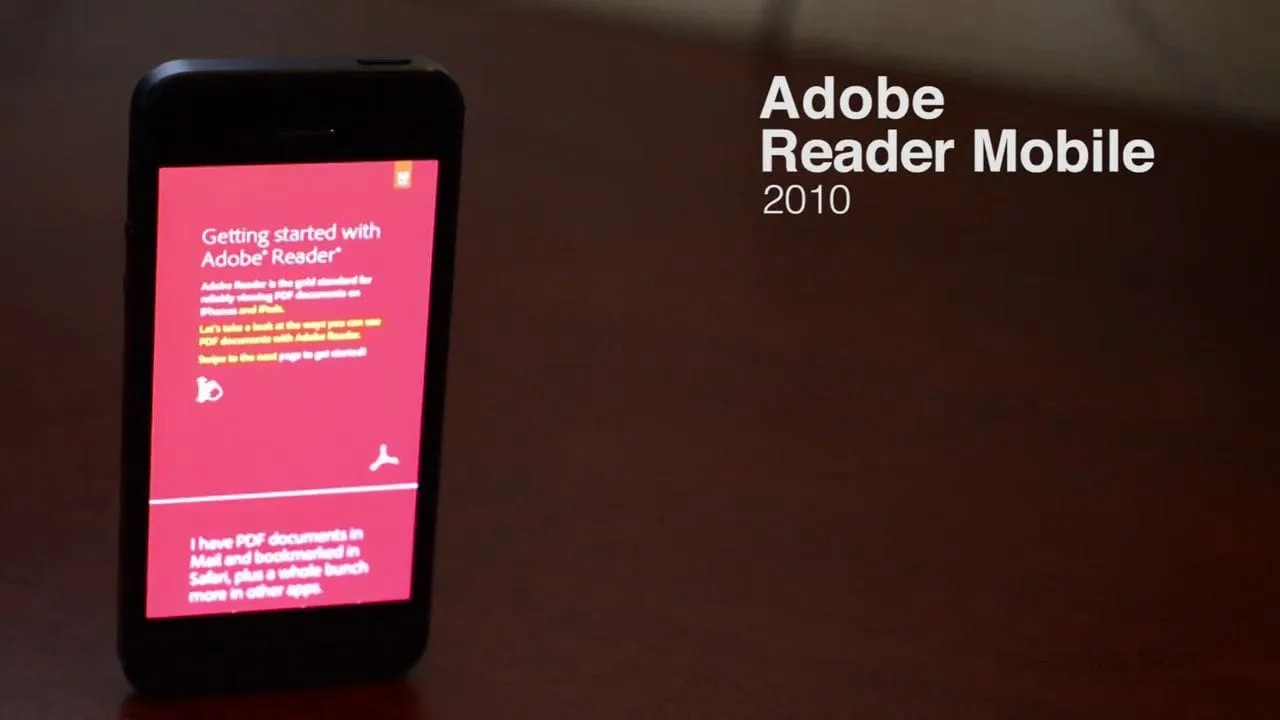
See it working
Value added
For people using it
A person could read a long PDF, mark it, fill in a form and sign it from a phone without leaving the page or fighting the keyboard. The controls arrived with the task and left afterward.
For the business
Adobe had a mobile reader that looked and behaved like the rest of its PDF family. Using the Acrobat X style guide kept the brand consistent across desktop and phone.
For the team
Feedback at every step kept product management and engineering from meeting the design for the first time in the spec. The spec gave engineering a single reference for how the framework should behave.
The result
Covered a document list, a reading view, annotation tools, form filling with a signature and text selection. Each screen followed the same rule of showing controls only when the task needed them. The visual assets came from the Acrobat X for desktop style guide.
What I took from it
Prototypes on the device settled arguments faster than any wireframe did, and I would put one in front of engineering in the first week next time. I would also test the keyboard states earlier, since they took away so much of the screen and shaped the form design more than I expected.
Background
Adobe announced Adobe Reader for Android on May 20, 2010. It was a free, touch-first viewer with a Reflow mode that rewraps text for small screens. An iOS version followed in October 2011.